Changelog

New features, improvements and fixes in XAGOe.

November 2026

NewViewsCopy link

Group your board into lanes by any field

Split a board into rows with the new Group menu in the board toolbar: one lane per value of a field such as assignee, priority or epic. Every lane keeps the same stage columns, so you see who has what at each stage.

  • You can group by select, user and single-link fields. Records with no value go in a "No {field}" lane.
  • Each lane has a collapse arrow and a count, and each cell shows its own count.
  • Your filter and quick search narrow every lane, and lanes left empty disappear.
  • Drag a card to another stage within its lane. Dropping it in another lane is refused and the card stays.
  • Use + in a cell to start a new record with that lane's value.
  • Your choice is saved in the board's link and in your browser for that board.

ImprovedDocumentsCopy link

Open a space and its pages right from Documents

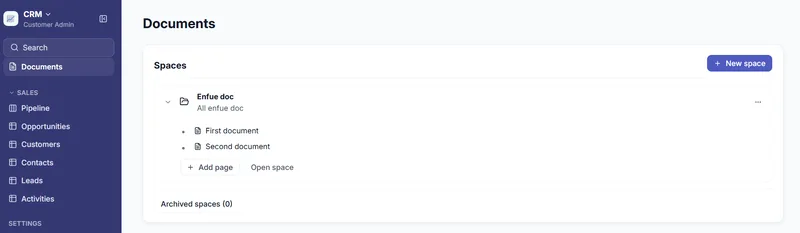
Documents now takes you to your pages in fewer clicks, and a page opens full width without a page tree beside it. On the Documents home, click a space to expand it and see its pages and subpages, then click a page to open it. Add page creates a page in the space, and Open space takes you to the space page.

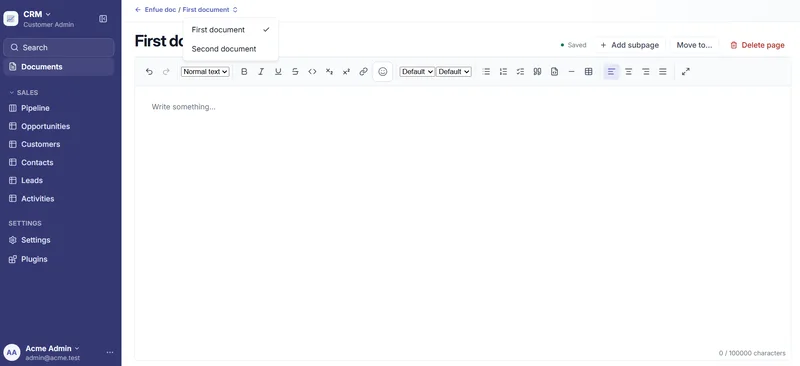
  • Use the back arrow in the breadcrumb to return to the Documents home.
  • Click the page's name to switch to another page in the same space.
  • Add subpage, Move to… and Delete page are in the page header.
The Documents home with a space expanded in place, showing its pages First document and Second document, plus Add page and Open space buttons.
A document page open in the full-width editor, with the breadcrumb's page name menu listing First document and Second document, and Add subpage, Move to… and Delete page in the header.

NewPlugins and MarketplaceCopy link

Track time in hours with a weekly timesheet

Log time against your records and read it in hours. The time tracking plugin adds a Time tracking group with a weekly Timesheet, a month Calendar and a Dashboard. In the timesheet, you type hours straight into the day cells.

  • Use Add record to put a record on your timesheet.
  • See deadlines and logged time on the calendar.
  • Compare hours with each record's estimate on the dashboard.

ImprovedSearchCopy link

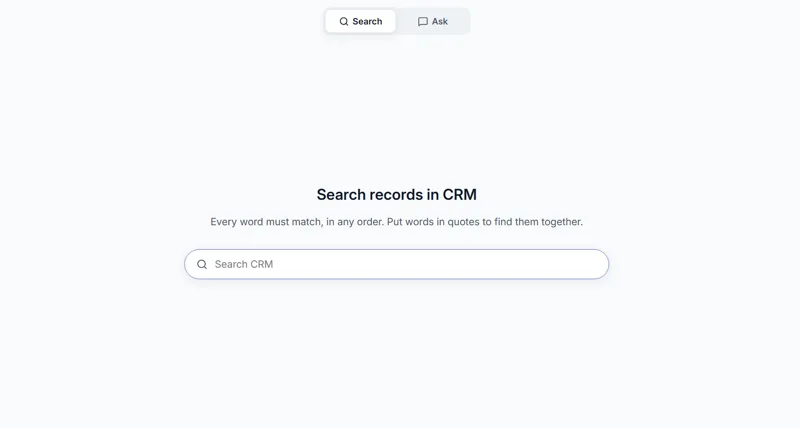
Search and Ask together on one page

Search and Ask now live on one page. Switch between finding a record and asking a question with the switch pinned at the top; in a long conversation, Jump to latest takes you back to the newest answer.

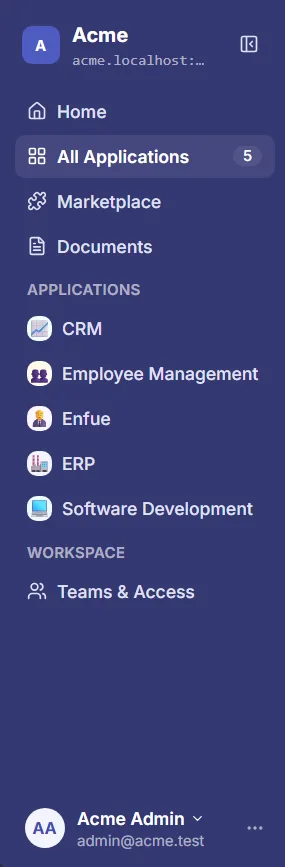
The workspace sidebar lists Home, All Applications, Marketplace and Documents, then the apps CRM, Employee Management, Enfue, ERP and Software Development, with Teams & Access and the user card at the bottom.
The narrow sidebar with a row of app icons for switching between apps, and a round user card at the bottom that opens Profile and Sign out.
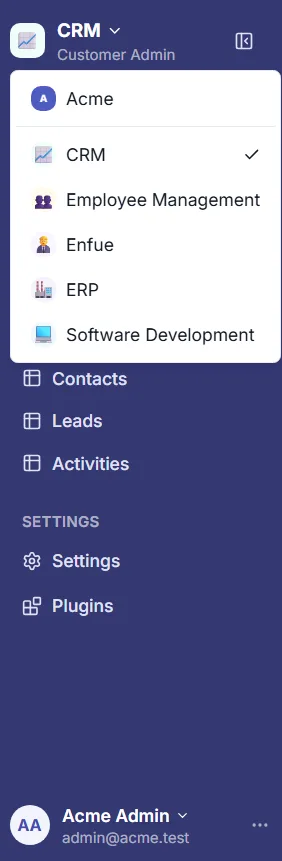
The new app switcher open in the sidebar, listing the apps CRM (selected), Employee Management, Enfue, ERP and Software Development, with the user card at the bottom.
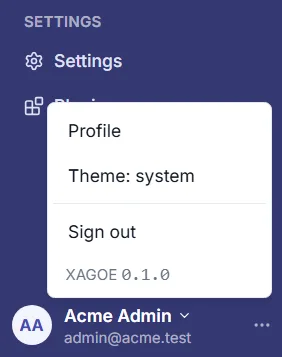
The user menu open from the user card in the sidebar, with Profile, Theme and Sign out options.
The combined page with Search and Ask buttons at the top, and a search box titled "Search records in CRM" ready for typing.
NewRecordsCopy link

Short, readable keys for records, like CAND-123

Every record gets a short key made of a prefix for its object and a running number, for example CAND-123. Keys are easy to read out, type and share, and they are unique within your workspace.

Each object gets its prefix automatically from its name, and the prefix never changes. Records in each object are numbered 1, 2, 3 and so on, and existing records are numbered in the order they were created.

In the app, a record opens at the address /browse/CAND-123, the same pattern whichever app the record belongs to, so you can paste a key link to a colleague and it opens the record. The key appears on the record page, as a column you can show in tables, and on board cards. Older record links keep working.

In the API, every record now comes back with its key, and links to other records include the key of the record they point to. Anywhere you would give a record's ID, you can give its key instead, to read, update, delete, restore or move a record through a workflow, or to see its related records and documents.

A key you aren't allowed to read behaves exactly like a record that doesn't exist.

NewSearchCopy link

Find a record by its key in search and Ask

Type a record's key, such as CAND-123, into search and that record comes first in the results, followed by the usual matches. The same works in the quick search on a records list.

Ask understands keys too. Name a record by its key in a question and Ask uses that record as a source. Answers can now mention the key of the records they draw on, and the sources Ask shows include each record's key.

Keys follow the same access rules as everything else. A key for a record you can't read finds nothing, exactly like a key that doesn't exist.

ImprovedLook and feelCopy link

A cleaner, more consistent look across your app screens

Record tables, record details, boards, filters, Documents, workflow and relationship settings, history, permissions, Teams & Access and workspace settings now share one visual style. Titles, spacing, tables and buttons look and behave the same from screen to screen. They work in light and dark themes and on desktop, tablet and mobile.

Records

  • Tables show their title and record count, with a clear empty state and the New and Link existing buttons in the top-right corner.
  • Clicking a row opens the record's details page.
  • Records with Rich text show it beside the record's properties in a wide 65/35 layout. Records without it show their fields in a card. Records with few values stay compact.
  • Click any property value, or "Not set", to edit it. Selectors save as soon as you pick a value, and text saves when you click away.
  • Long record titles stay on one line and show the full text on hover.
  • The New Record window is larger for records with Rich text, and you can drag its divider to resize the split. The Rich text toolbar fits on one row, with extra tools under "More".

Filters, boards and Documents

  • Filter panels are more compact and easier to scan, and the delete button is now a red trash icon.
  • Record Documents has a searchable page tree with a page count. The editor shows a breadcrumb, a save status and a word count. The deleted pages and Move windows are easier to read, and "Recently deleted" has a Back to list button.

Settings

  • Workflow stages wrap instead of scrolling sideways. Click a stage to edit it, and the new Add stage button follows the last stage.
  • Relationship settings, history and permissions tables are better aligned. Permission descriptions now appear in info icons, and archive actions are labelled "Archive" with a yellow icon.
  • In workspace settings, Workspace sits above Ask on the left, and Logo sits above Sign-in on the right.
NewPlugins and MarketplaceCopy link

Post record updates to Slack with the Slack integration

Connect an app to Slack and choose which events post to which channel. When a record is created, or moves to another stage in a workflow, XAGOE posts a message to the channel you picked.

  • Connect in a few clicks. On the app's Plugins page, open the Slack settings and choose Connect Slack. You can reconnect or disconnect at any time, and disconnecting removes the saved access straight away.
  • Rules per object. Turn on a record is created and a record moves to another stage separately, each with its own channel. The channel list includes public channels and the private channels the XAGOE app has been invited to.
  • Clear messages. Each message shows the app name, the object, the record's name, what happened and a link that needs a signed-in session. It shows no other field. Everyone in the channel sees the message, including people who can't open the record. Messages are written in your workspace's language.
  • Several objects. Choose which objects the integration may watch when you install it, and add or remove objects later. Adding or removing asks for consent again, and a removed object stops posting immediately.
  • A delivery log you can trust. See every message with its status, and send again any message that gave up. A slow or failing Slack never affects the records you save. If Slack stops accepting the connection, admins get an email and waiting messages are sent once you reconnect.

Admins can also see and cut the integration's access from the installation's safety section, even while the plugin is switched off.

ImprovedApps and builderCopy link

A redesigned workspace for reviewing and editing your draft

The page where you review your draft before creating the app has a new look, with App, Model and Builder tabs, plus Undo and Redo in the top bar.

  • App shows a preview of your draft as a board or a table, filled with sample records. Stages the assistant just changed are highlighted, and clicking a column opens that stage so you can rename it, recolor it, move it, mark it open or closed, or remove it and choose where its records go.
  • Model shows one card per area, with the fields of each object on single lines and a Stages card for workflows.
  • Builder lets you edit one list at a time: its details, its steps (drag to reorder) and its connections. A preview shows how one record will look.
  • Connections shows a board with one box per list and a line for each link between lists. Drag a box to rearrange the board, drag an arrow onto another list to link them, and click a line to rename, change or remove the link.

While your first draft is being generated, you see a placeholder board, a timer and a Stop button. The assistant now sits in a dock at the bottom, showing its latest turn, the changes it made and an undo, and you can expand it to see the whole conversation. An N plugins fit button opens a drawer of plugins that suit your draft. Create opens a slide-in panel with four numbered sections.

The "First stage" setting is no longer in the build workspace. A new workflow starts at its first stage.

NewDocumentsCopy link

Documents and files, in spaces and on records

Your workspace now has documents and files. Write rich-text pages on any record or in a space, and add images and files right inside a page.

Spaces hold pages and subpages at the app level or across the whole workspace. Choose which teams can read a space and which can edit it, so sensitive pages stay with the right people. You can move a page, with all its subpages, to any other space or record in your workspace, as long as you can edit both places.

Files are checked for malware before anyone can open them. A file that fails the check is blocked, and a clean file shows as an image or a download chip in the page. You can also upload your workspace logo as a file.

  • Search has a Documents filter, and Ask can cite documents. Both show only the pages the person asking is allowed to read.
  • Plugins can read and write documents and files on the records of their own objects.
  • Images and files also work in rich-text fields on record forms and views.

October 2026

NewRecordsCopy link

Write rich documents inside a record with Rich text

Builders can now add a Rich text field to any object in an app. Wherever people fill in a record, they get a full writing editor instead of a plain text box.

The editor works the way you would expect from tools like Notion or Confluence:

  • Blocks you can drag and drop, a slash menu (type /) to insert anything, a floating toolbar and Markdown shortcuts.
  • Every kind of list, plus callouts, toggles and columns.
  • Tables with merged cells, header rows and columns, adjustable widths and cell colours.
  • Code blocks with syntax highlighting, math formulas and a table of contents.
  • Text and background colours, alignment and a full-screen mode.
  • Mentions, links to other records, dates, statuses and emoji.
  • Embeds from a short list of trusted providers.

Rich text shows up in record views, table cells and cards, and its text is picked up by search and Ask. You can filter a table by whether a rich text field is empty or not, but not sort by it. Existing long text fields can be converted to rich text without losing the views that use them. Plugins can also declare, read and write rich text fields.

NewAskCopy link

Ask questions and get answers with sources

Ask lets you type a question in plain language and get an answer drawn from the records you can open. You see the matching sources straight away, then a written answer in which every claim points to the record it came from, so you can click through and check it.

Ask understands meaning, not just exact words, and works across the eight interface languages. For counting or listing questions, such as "how many candidates are in the interview stage?", the number comes from your data, not from the AI, and links to the filtered table. If your records don't hold enough to answer, Ask says so. It can also ask you to clarify, and you can follow up in the same conversation.

  • Private conversations. Your threads are visible only to you. You can reopen them from the threads list and delete them at any time. Threads expire 90 days after your last question.
  • Only what you may read. Ask never uses records you don't have access to. If you lose access to a source, the answer that cited it is hidden. If a source has changed, the answer is marked "sources changed".
  • Under admin control. A Customer Admin turns Ask on for the workspace, and it is off by default. The switch links to the data processing terms, and turning it on or off is recorded in the audit trail.
  • Filter by linked records. The table filter can now use a field of a linked record, one step away, for example candidates whose job has a given status.

Ask is on the Search page: open it with Ctrl/⌘+K and switch to Ask mode.

NewSearchCopy link

Search every record in your app by keyword

Each app now has its own Search page. Type a word or phrase and XAGOE looks through the text in every field of every object you are allowed to read, then shows matching records with the matching words highlighted.

Search works in Latin scripts, Vietnamese, Korean, Japanese and Chinese. In Vietnamese you can type with or without accents and still find the record. Narrow results with object chips, and move through them using only the keyboard.

Open Search from the pinned entry in the sidebar, or press Ctrl/Cmd+K or / from anywhere in the app. You only ever see results from records you have permission to read. Plugins can use the same search too: the With picker in Scheduling now finds any person in your app.

NewLook and feelCopy link

XAGOE now speaks eight languages

XAGOE is now available in English, French, Dutch, Korean, Japanese, Vietnamese, and Chinese in both Simplified and Traditional script. Menus, buttons, messages, and the emails you get about your account all appear in your language.

Each person picks their own language, and your workspace default still applies until they do. The assistant also replies in the language you use in XAGOE. Dates follow each language's usual order with a 24-hour clock, and you can type dates in that same format.

Plugins such as Scheduling and Smart Checklist come in all eight languages too. The names you give your own apps, objects, and fields stay exactly as you wrote them.

ImprovedLook and feelCopy link

A fresh new look across XAGOE

XAGOE has a new, more consistent look. Everything works as before, with the same screens, wording and behavior, but it now looks cleaner and is easier to read.

  • A new indigo brand style with a colored sidebar for navigation, and refreshed buttons, fields, menus, dialogs, tables, badges and banners.
  • Inter typeface throughout, including full support for Vietnamese, with a clearer text size scale. Page titles are a little smaller.
  • Board columns and cards have a cleaner header and card style, and the chat and prompt box are refreshed.
  • Light and dark themes are polished, and dark mode follows your device setting.
  • Plugins such as Smart Checklist and Scheduling match the new look automatically.
NewPlugins and MarketplaceCopy link

Browse the Marketplace and book meetings with Scheduling

The new Marketplace is one place to discover plugins and add them to your apps. Browse by category, see which plugins are coming soon, and check whether a plugin fits an app before you install it. If it doesn't fit, you see why. If you aren't an App Admin of that app, you see who to ask.

Scheduling is the first plugin to use the Marketplace. It adds a Calendar and a Meetings tab to your records, so you can book a meeting from a record and name the person and the deal or application it's about. Meetings can be cancelled or rescheduled. A meeting can't end before it starts or run longer than 24 hours.

Plugins are now easier to fit to your app:

  • Optional connections. A plugin can work with only some of your objects. For example, Scheduling works in an app that has Contacts but no pipeline.
  • Clear ownership. Records and fields that a plugin adds are tagged PLUGIN, so you can tell what came from where.
  • Safe changes. If a plugin rejects a change to its records, nothing is saved and you see a clear message.
  • Record actions. Plugins can add actions to a record, with a dialog to fill in.

Plugin developers also get a developer kit, with a local test environment, a tool to start a new plugin and check it, and a written guide.

ImprovedPlugins and MarketplaceCopy link

Safer plugins that stay up to date on their own

Plugins now reach your workspace as verified, signed packages that XAGOE reviews and approves before they are released. Every plugin is checked again before it runs, so you can trust that what you install is what was approved.

  • Fixes arrive automatically. When a plugin publishes a fix that doesn't change what it does or what it asks permission for, your installed plugin picks it up without any action from you. The change is recorded in the plugin's activity log.
  • Problem versions can be pulled quickly. If a plugin version turns out to be faulty or unsafe, XAGOE can switch it off for every workspace within seconds. Your plugin goes back to the last good version, or shows as unavailable with the reason.
  • Plugin screens are isolated. Views, record tabs and settings screens added by plugins now run in a protected frame, separate from the rest of XAGOE. They only see what the plugin has permission to show.

Smart Checklist also moves to this new setup, so checklist progress badges on cards and labels on record tabs load more smoothly.

NewPlugins and MarketplaceCopy link

Add plugins to your app, with Smart Checklist included

Each app now has a Plugins page where you can add extra features to that app and stay in control of what they do.

  • Review before you install. XAGOE suggests plugins that fit your app, shows what each one needs, and asks you to approve its permissions first. If a plugin depends on another, both are installed together in the right order.
  • Manage them afterwards. Change a plugin's settings, turn it off and on again, and check its activity log to see what it did. Before you uninstall, you see what will happen to the data it created.
  • Add plugins while building. When you create an app, including with the assistant, you get suggestions for plugins that fit and a step to review their permissions.

Smart Checklist is the first plugin built this way. Define a checklist for each stage of your workflow. Records get it automatically when they enter that stage, and it can stop a record from moving forward until the required items are done. Items can be ticked off automatically when something happens in the app, and people can add their own items. You see progress on the record, on board cards, and in a Checklists view across all records.

NewApps and builderCopy link

Describe your app to the assistant and let it build

Tell the assistant what you need, for example "jobs and applicants with stages from applied to hired", and it drafts an app for you: objects, fields, workflows and views. Keep chatting to refine the draft. The assistant shows its plan and progress, asks you questions when it needs to, and links each change to the part of the draft it touched. You can stop a turn, retry it, or undo it. Your drafts are saved under My drafts.

The assistant makes fewer mistakes and finishes faster. It fixes small slips on its own, such as a misnamed reference or a name it didn't need to set, and it learns from its errors within a turn. If a turn fails or runs out of steps, your draft isn't lost: the assistant keeps the last draft without errors, or else its latest one, and tells you what it kept. If you press Stop, nothing is kept.

You can see what the assistant is doing while it works. A Detailed view shows a running log of each step with timers and the details of what it is looking at or changing, including every error and correction, then a summary of how the turn ended. Switch to Minimal for a simpler view. Your choice is remembered, and Detailed is the default.

Each turn can be downloaded as a trace file, which helps when you want to review the assistant's quality or share a problem. You can download your own turns, and workspace admins can list and download the turns of everyone in the workspace under Admin > Assistant. Every download is recorded in the audit trail.

When you're happy, create the app. You can add sample records so it isn't empty. A banner and a Sample label mark them, and you can remove them all in one step. You can restore removed sample records for 90 days.

The assistant also works on apps that are already live. Open Settings > Model, describe the change you want, and it proposes it as a card that shows what will change. Nothing changes until you apply the proposal yourself, and you can discard it instead. History shows which changes came from the assistant and links back to the conversation.

You can now also reorder the options of a choice field, rename a workflow, and set the currencies of a currency field in the Model and Workflows tabs.

NewApps and builderCopy link

Change a live app safely, and your records follow

You can now reshape an app that is already in use without breaking the records inside it. Open the app's settings and use the new Model, Relationships, Workflows and Views tabs to add, rename, reorder or retire fields, options, stages, modules and views. Drag and drop to reorder, and undo a step if you change your mind.

Before anything is applied, you see an impact summary with real counts, such as how many records a change affects. If a change needs a decision, for example which stage existing records should move to, you choose it there. XAGOE refuses changes that would be unsafe, and tells you if someone else changed the app while you were editing. Safe changes can be undone right after you apply them.

Your data follows the change. Records are moved to the right stage, new required fields are filled in, and renamed or replaced options are remapped. Large updates run in the background, and a banner shows their progress and lets you retry if a step fails.

The new History tab lists every published version with a plain-language summary of what changed, and lets you compare versions. Removed options and stages can be restored for 90 days. Table and board views can now filter by field, and your personal view settings are saved to your account. Each role's page also shows a summary of its overrides.

NewAdministrationCopy link

Custom roles with per-object permissions

Create your own roles to control exactly what people can do in your workspace and in each app. Start from scratch or copy an existing role, then choose which actions it allows.

For any app role, you can override permissions object by object. For example, someone can edit candidates but only view another object. Before you save a change to a role, an impact dialog shows who it affects.

  • Roles tab: list, create, copy, edit and delete roles in the workspace settings.
  • Access tab: see who has access to an app, and how they got it, through a team or a direct grant.
  • Settings > Permissions: each app shows what its members can do.
  • Record screens adapt to the person's role. Actions they can't use are hidden, and a banner tells them when they have view-only access.
  • No self-promotion: you can't give out more access than you have yourself. Attempts are refused with a clear explanation of what is missing.

API tokens can now be tied to a single app, so they can't reach anything else. The All Applications page has server-side search, and the audit trail shows readable labels for role changes.

NewViewsCopy link

Move records through stages on a Kanban board

See your records as cards on a board, with one column per stage and a count at the top of each column. Drag a card to another column to move the record to that stage, or use Move to… from the card's menu if you prefer not to drag.

Narrow the board with filters and quick search, and choose which fields show on each card. Use + at the top of a column to add a new record straight into that stage.

On a record's page, change its stage from the stage selector and see In stage since with the date and time it entered the current stage. If a move isn't allowed, a message explains why and the record stays where it was. If someone else moves the same record first, you're told so instead of overwriting their change.

NewViewsCopy link

Filter, sort and search your table of records

The table view now lets you narrow down and organise your records without leaving the page.

  • Filter with conditions that match all or any of your rules. You can nest rules in groups, and each field type has its own input, such as dates, choices, numbers or linked records.
  • Sort by clicking a column header, or use the Sort menu to sort by up to three fields. Empty values always come last.
  • Search quickly across your records from the toolbar.
  • Choose your columns: show or hide columns, drag them into a new order and resize them. XAGOE remembers your sort, column order, visibility and widths for each view.
  • Recently deleted records are on the same toolbar, so you can find them again.

Your filters, sort and search are kept in the page address. You can share a link to exactly what you see, and the Back button works as you expect. Cells with many linked records show the first few and a "+N" count. The table is also available in Vietnamese.

NewRecordsCopy link

Open any object in an app and work with its records right in the browser. A table view lists your records, and + New opens a form with the right input for each field type.

Click a record to open its own page. There you can read and edit its fields, and you can see related records in tabs. If someone else changed the record while you were editing, XAGOE tells you before it overwrites their work.

Link records together. Connect a record to one other record, or to a list of records, and add or remove links without leaving the page. A record can have child records, and the table shows these as a tree that opens as you go. XAGOE stops you from creating loops, and it blocks deleting a record that others still depend on.

Delete safely. Deleted records go to Recently deleted. You can restore them within 90 days, and after that they are removed for good.

XAGOE is also available in Vietnamese. Each person can pick their language, and admins can set a default for the workspace.

NewApps and builderCopy link

Create your own app from a blank start

Workspace admins can now create an app from scratch. Choose Start blank, then shape it in the review editor before you create it.

In the editor you can:

  • add and rename objects (the kinds of record your app holds) and pick an emoji icon for the app and each object
  • add fields of 15 types, including text, number, date, currency, select, user and relations
  • link objects to each other, including an object to itself, with "Links to one" or "Links to many", and mark a linking object as a junction
  • set the display field and define workflow stages
  • turn modules on or off

The editor checks your work as you type. Problems appear in a panel right away, and Create stays disabled until they're fixed.

When you create the app, you can give teams access in the same step. Pick a team and a role (App Admin, Editor or Viewer). You land on the new app's home, which shows its objects and workflows. The Apps list shows each person only the apps their teams have access to. Other workspaces never see your apps.

Teams & Access has an app picker when you grant access. Your Profile also has an API tokens card. The secret is shown once, when you create the token.

NewAdministrationCopy link

Your own workspace with users, teams and an audit trail

Each customer now gets a private workspace at its own address, like your-company.xagoe.com, with its own users, teams, roles and activity history. Nothing is shared between workspaces: people from one workspace can't sign in to, or see anything in, another.

Invite people and organize access. Workspace admins invite users by email, group them into teams and give each team built-in roles. A person's access is the combination of all the teams they belong to. XAGOE always keeps at least one active admin, so you can't lock yourself out by accident.

Sign in safely. Accounts use strong password rules, temporary lockout after repeated failed attempts, password reset by email, and the option to sign out of every device. Invitation and reset emails are available in English and Vietnamese. You can also create personal API tokens with limited access and an expiry date.

Keep track of what happens. A new Teams & Access area brings together Teams, Users, Workspace settings (including your logo) and an Audit log that shows who did what and when. Each person sees only the sections their permissions allow.